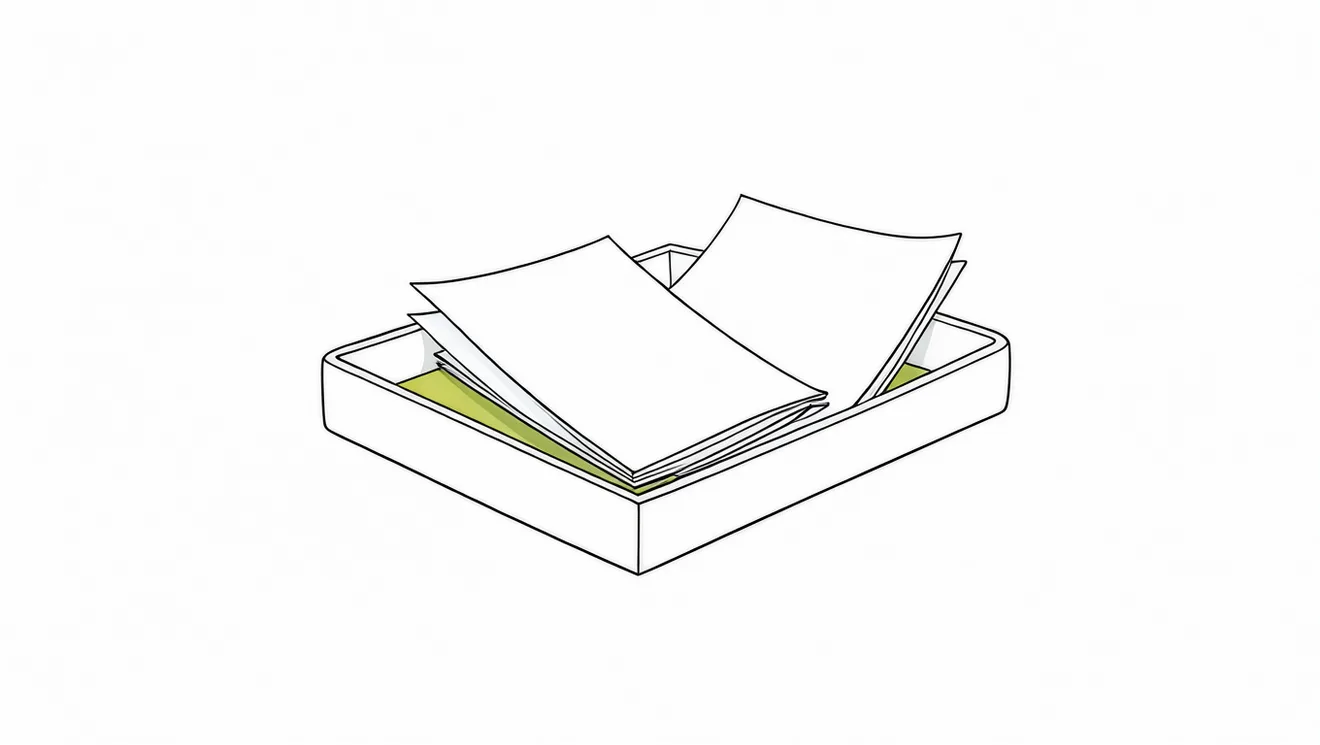
Use your inbox
Select Inbox in the sidebar. Saved items stay there until you act on them. They do not become threads automatically.
- Read an item: open it, then use Reader or Site View.
- Move an item: use Move to to send it to a collection or a thread.
- Clean up: archive an item or select Delete. Use the Active and Archived filters to see each list.
To use an item in a thread, select + in the message box, then Add from inbox.
Install the extension
- Install for Chrome. Browsers that are based on Chromium can also use this link.
- Install for Firefox.
After you install it, sign in to your Gistr account in the extension.
Save a page or a video
- Any page: select the Gistr icon in the browser toolbar. Gistr saves the page to your inbox.
- YouTube: select Save to Gistr on the video page. Then you can select Take Note.
After you save, a message shows Start a thread and Open inbox. You can also add a note or undo the save.
Extension settings
- Auto-detect YouTube: asks if you want to save a video. Nothing saves until you select save.
- Floating button: shows or hides the Gistr button on pages.
- YouTube seekbar: shows Gistr highlights on the YouTube seek bar.
- Auto-capture: saves items from the places that you choose.
Auto-capture is off until you turn it on. You choose from Bookmarks, Reading List, YouTube, Medium, Substack and X (Formerly Twitter).
Save from your phone
- Open the link in any app on your phone.
- Select Share, then select Gistr.
- Gistr saves the link to your inbox.
See Mobile apps for more information.