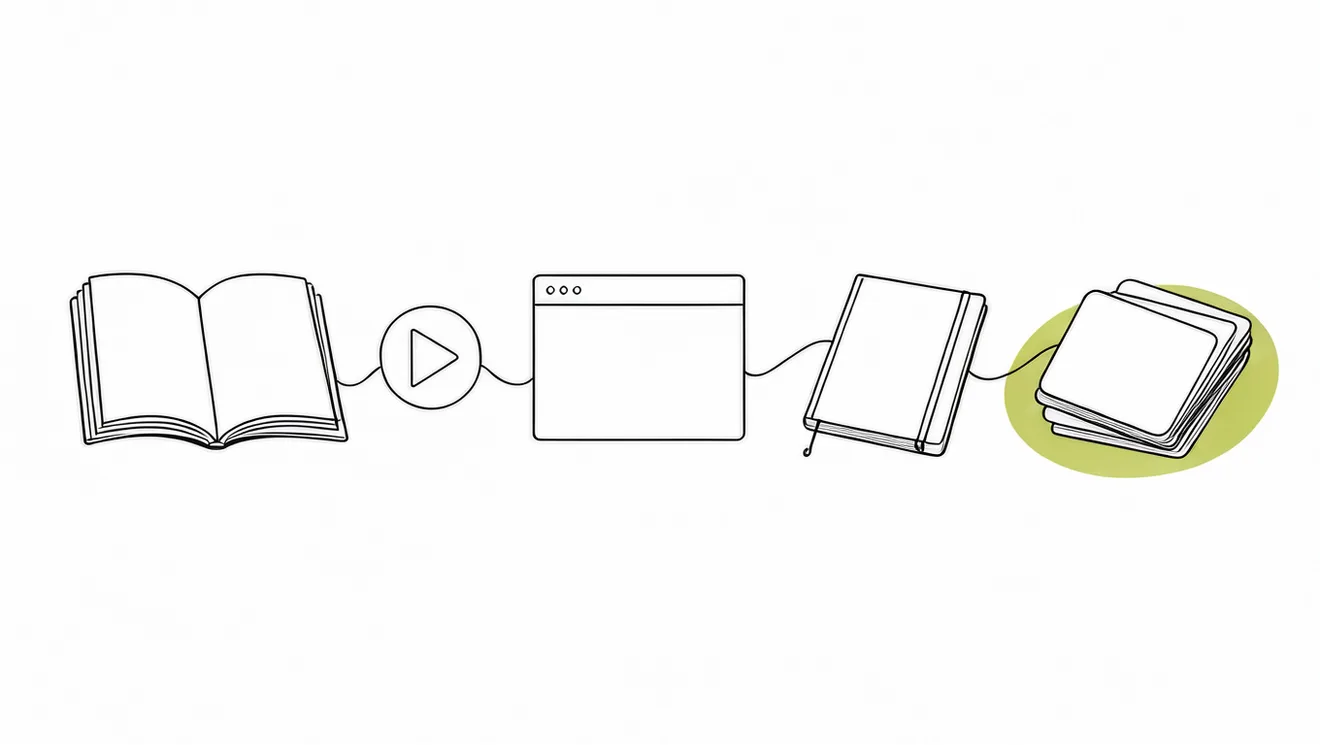
The short version
- Add a source, for example a PDF or a YouTube video. Gistr makes a thread for it.
- Read the source in the thread. Ask questions in Ask AI. Each answer links to the part of the source that it uses.
- Keep what is important in your notes.
- Open Study space to make a study plan, flashcards, a quiz or a reading from the source.
- Come back each day. Gistr shows you what to review.
The parts of Gistr
- Source: a thing that you learn from. Gistr supports YouTube videos, podcasts, PDFs, presentations, EPUB books, documents, Markdown, text files and web pages.
- Thread: the workspace for your sources. You read on one side and work on the other side. One thread can hold many sources.
- Notes: the pages in a thread. You write them, or you ask Ask AI to write them.
- Ask AI: the chat in a thread. It answers from your sources and shows citations, so you can check each answer.
- Study space: study plans, readings, flashcards and quizzes, with a daily review. Read about Study space.
- Collections: folders for related threads, for example one course or one project.
- Memory: what Gistr remembers about you across threads. Memory is on paid plans. Read about Memory.
- MCP: a connection between your Gistr library and AI assistants such as Claude and ChatGPT. Read about MCP.
Find new things to read
Gistr has no public feed of articles. To find new material, ask Ask AI. It can search the web and suggest pages. You choose the pages to add. Gistr does not add a suggested page without your approval.
- Open a thread and go to the chat.
- Open the + menu in the message box, select Tools, then select Find sources.
- Type your topic and send the message.
- Select the results that you want, then select Add to thread.
Where Gistr works
Gistr works in a web browser, in the mobile apps and in the browser extension. Your library is the same on each of them.
The layout changes on a phone. A phone shows one panel at a time, and you use the tabs to change panels. A computer can show the source and the chat side by side.
Get more help
Ask a question in Ask AI. It can search the Gistr help docs. To talk to a person, see Troubleshooting and support.