Start a chat
- From the home page: type in the ask box. Gistr opens a thread for your question.
- In a thread: open the chat and type your question.
- New topic: select New chat. A new chat does not use the context of the old chat, but it can use the same sources. Each thread keeps its list of chats.
Citations
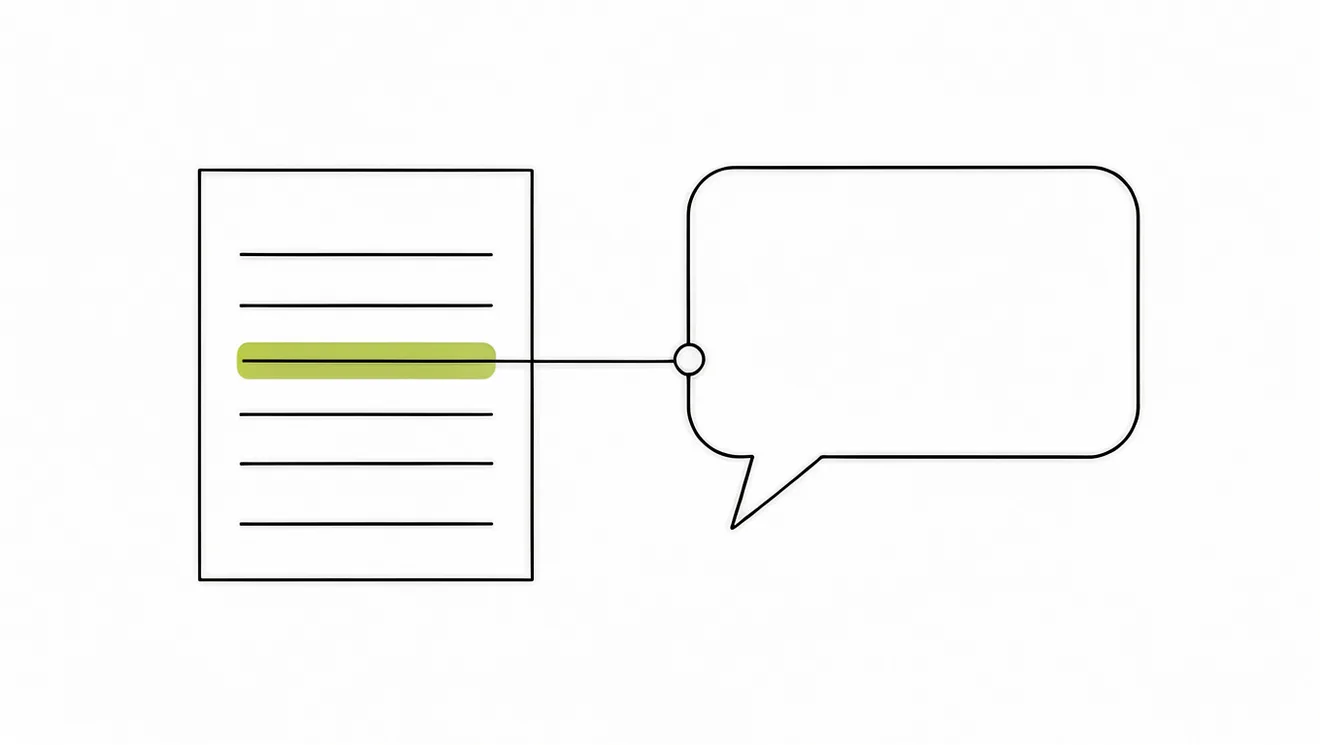
Each citation links an answer to its place in the source. Point to a citation to see a preview. Select it or select Open to go to the source. In a PDF, Gistr goes to the page and marks the passage. On a web page, it marks the quote.
The message box
- + menu: New source, Add from inbox, Attach images (up to 10) and Tools.
- / (slash): opens Tools, Create and Smart guides.
- @ (at sign): mention one source to focus on it.
- Dictate: speak your question.
- Output language: choose the language of the answer.
Tools
| Tool | What it does |
|---|---|
| Explain simply | Plain words and everyday examples, cited from your sources. |
| Key takeaways | The points worth keeping, as a short list linked to where they came from. |
| Quiz me | A short quiz to find the gaps in what you know. |
| Summarize | A short overview of any source, with every point linked to the line it came from. |
| Find sources | Videos, articles and papers worth saving on any topic. |
| Compare sources | Where your sources agree, where they differ, and why. |
| Search the web | Fresh answers from the web, with links to every page used. |
The Create tools make files. See Artifacts. You can use more than one Learn or Research tool in one message, but only one Create tool.
Find and add sources
When you ask for sources, or when your library does not cover a topic, Ask AI shows a Suggested sources card. Ask AI cannot add a source by itself.
- Read the suggestions on the card.
- Select the ones that you want.
- Select Add to thread.
Choose a model
The model menu has Effort options: Fast, Standard and Max. It also lists models by tier. A stronger model uses more credits.
| Tier | Credits |
|---|---|
| Fast | 1× |
| Standard | 2–3× |
| Frontier | 4–8× |
Your plan sets which models you can use. If a model is locked, select it to see your upgrade options. See Plans and credits.
Deep research
Deep research does in-depth, multi-step research on the web and ends with a report. Turn it on in the message box, or type /. A report can take many minutes.
Deep research is on the Explorer and Thinker plans. It uses more credits than a standard answer. The cost depends on the work that it does.
Follow-up suggestions
After an answer, Gistr can show short suggestions for your next question, or for something to make. Select one to send it.
Save an answer
Chat and notes are separate. To keep an answer, select Save to page, then choose a page or New page. You can also ask Ask AI to write a note for you.
What Ask AI cannot do
- It cannot add a source without your approval.
- It cannot answer from a source that has no readable text.
- It cannot read a suggested video until you add it as a source.
- It cannot make videos, send email or schedule events.
- It cannot change your exam date, pause a plan or rate your cards. Do these in Study space.