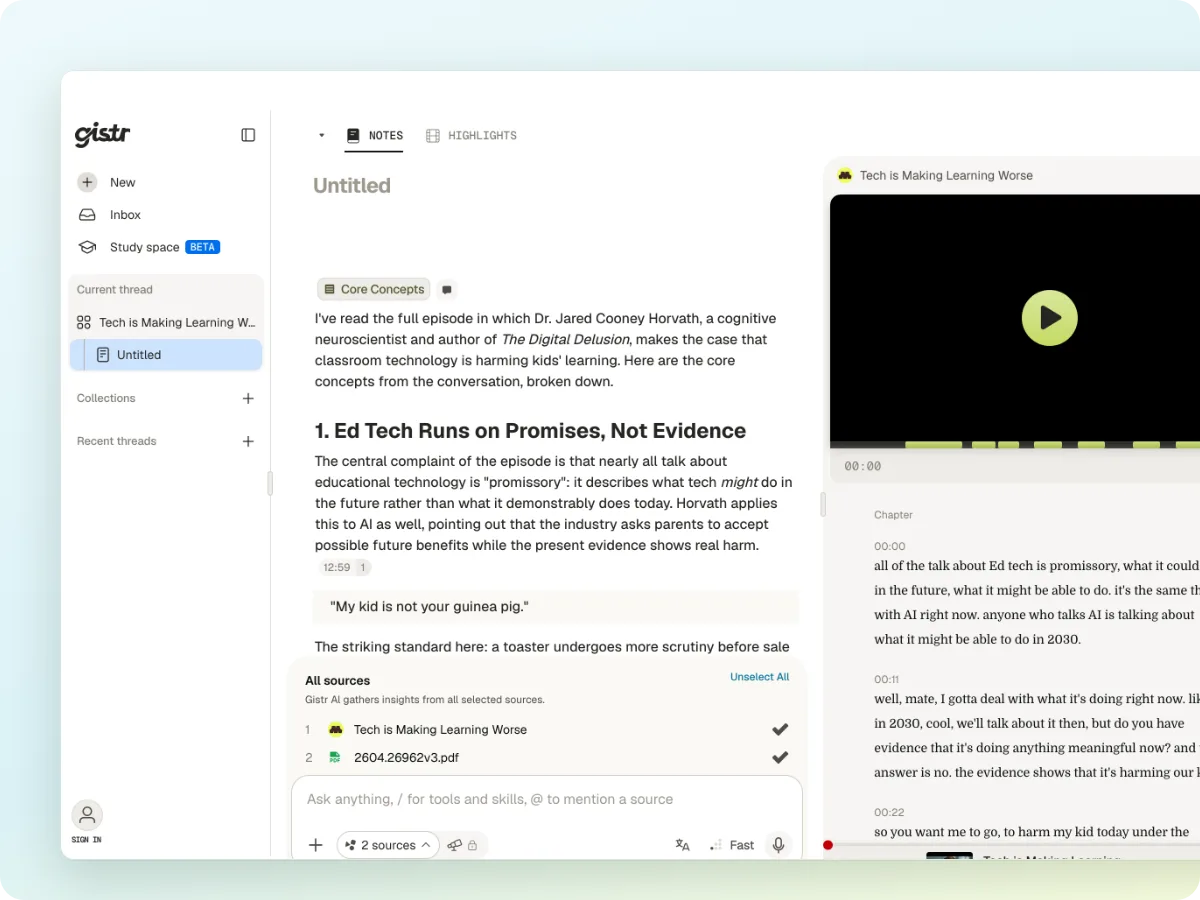
One knowledge base for ChatGPT and Claude
ChatGPT Projects and Claude Projects each keep their own files. Gistr keeps your videos, PDFs, articles and notes in one place, and both assistants can search it.
MCP URLhttps://ai.gistr.so/mcp
ChatGPT Projects and Claude Projects each keep their own files. Gistr keeps your videos, PDFs, articles and notes in one place, and both assistants can search it.
A PDF you uploaded to a ChatGPT project is not in your Claude project. You upload the same files again and again.
Projects take files. The lectures, podcasts and articles you learn from have no place to live next to them.
Switch assistants or start a new chat and the context is gone. You explain your topic and paste your sources again.
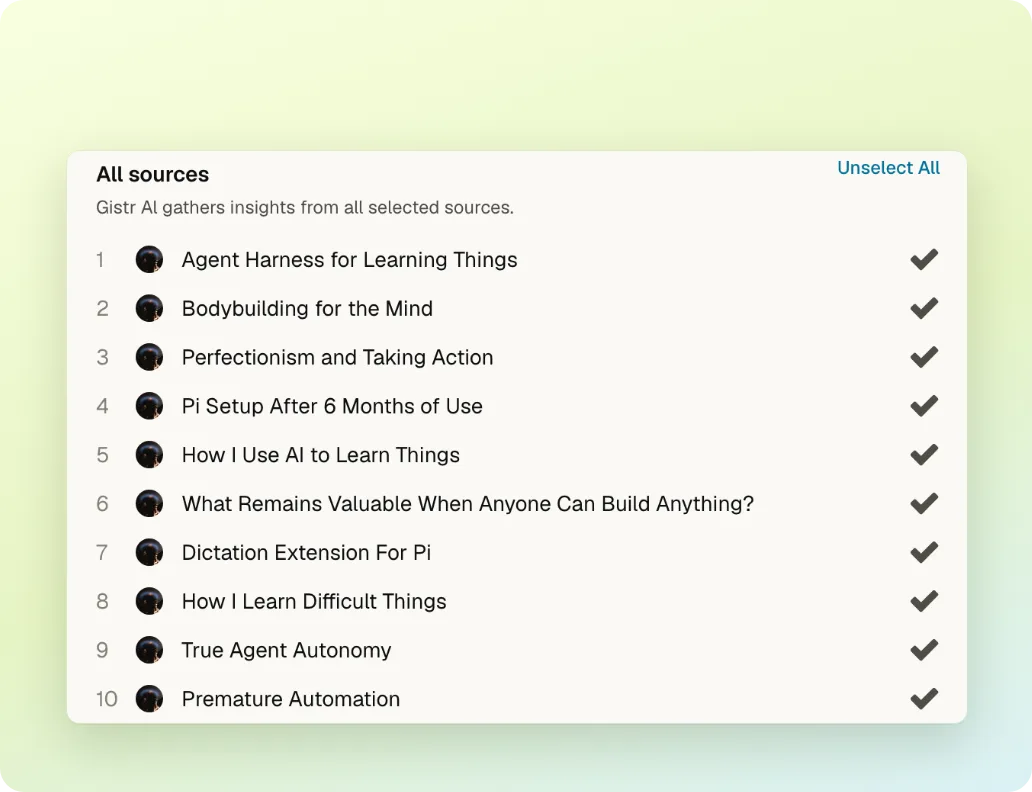
Both assistants search your threads, collections and notes. Ask a question and get answers from what you saved, not from the open web.
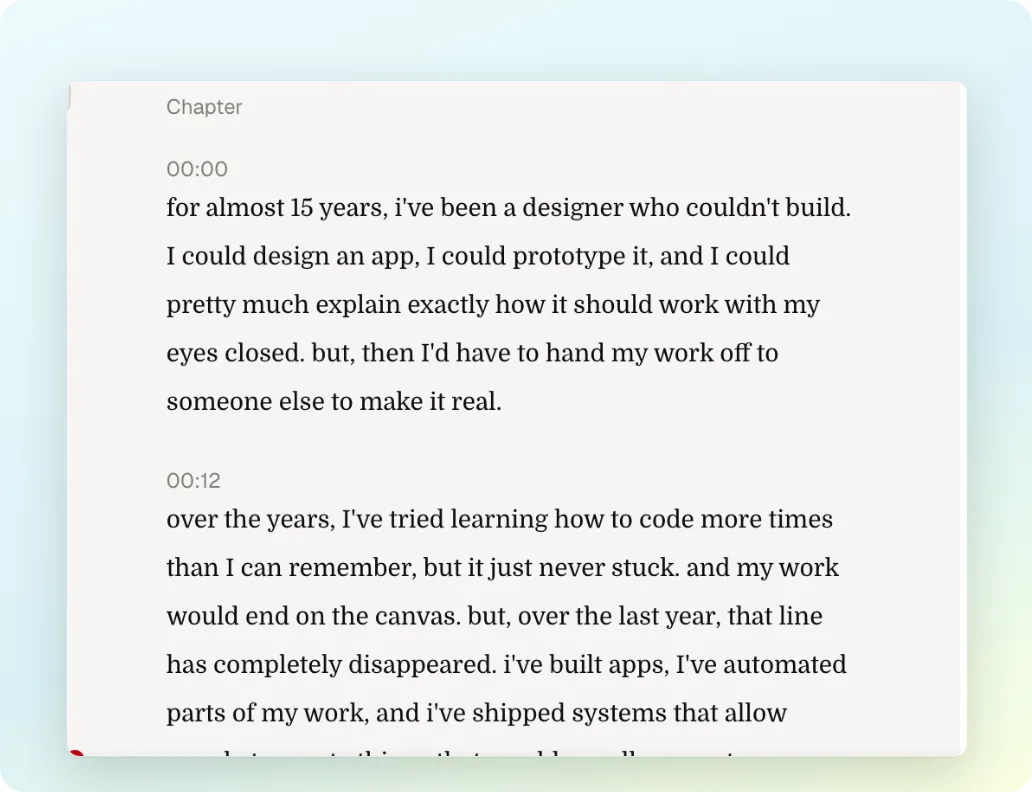
The assistant reads full YouTube and podcast transcripts and PDF, document and web page text, page by page or chapter by chapter.
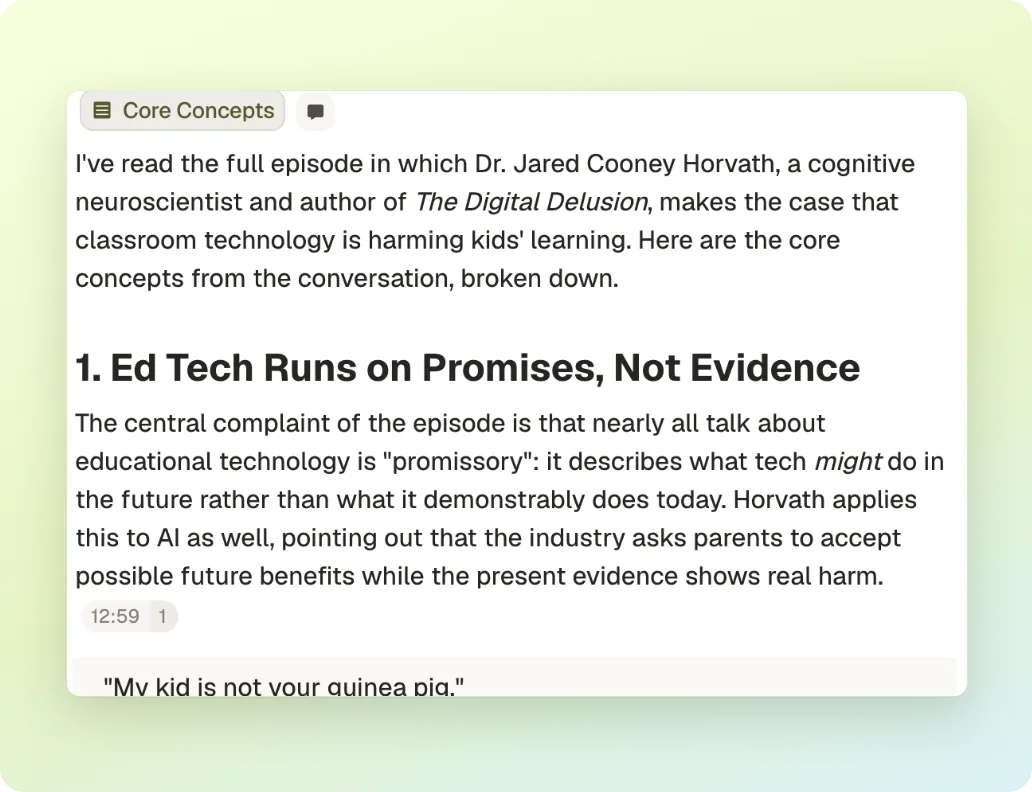
Save a link for later, upload a file, create a collection or write a note without leaving ChatGPT or Claude.
Sign up with your email. Your notes, sources and collections live in your Gistr notebook.
In Claude, open Settings → Connectors → Add custom connector. Paste https://ai.gistr.so/mcp and select Connect.
In ChatGPT, open Settings → Apps → Advanced settings and turn on Developer mode. Create an app with https://ai.gistr.so/mcp.
Approve access with your Gistr account. Then ask in the chat, for example: "Save notes on this video to Gistr".
Step-by-step guide with screenshots: Connect AI assistants to Gistr
Gistr helps you learn, research and teach any topic.